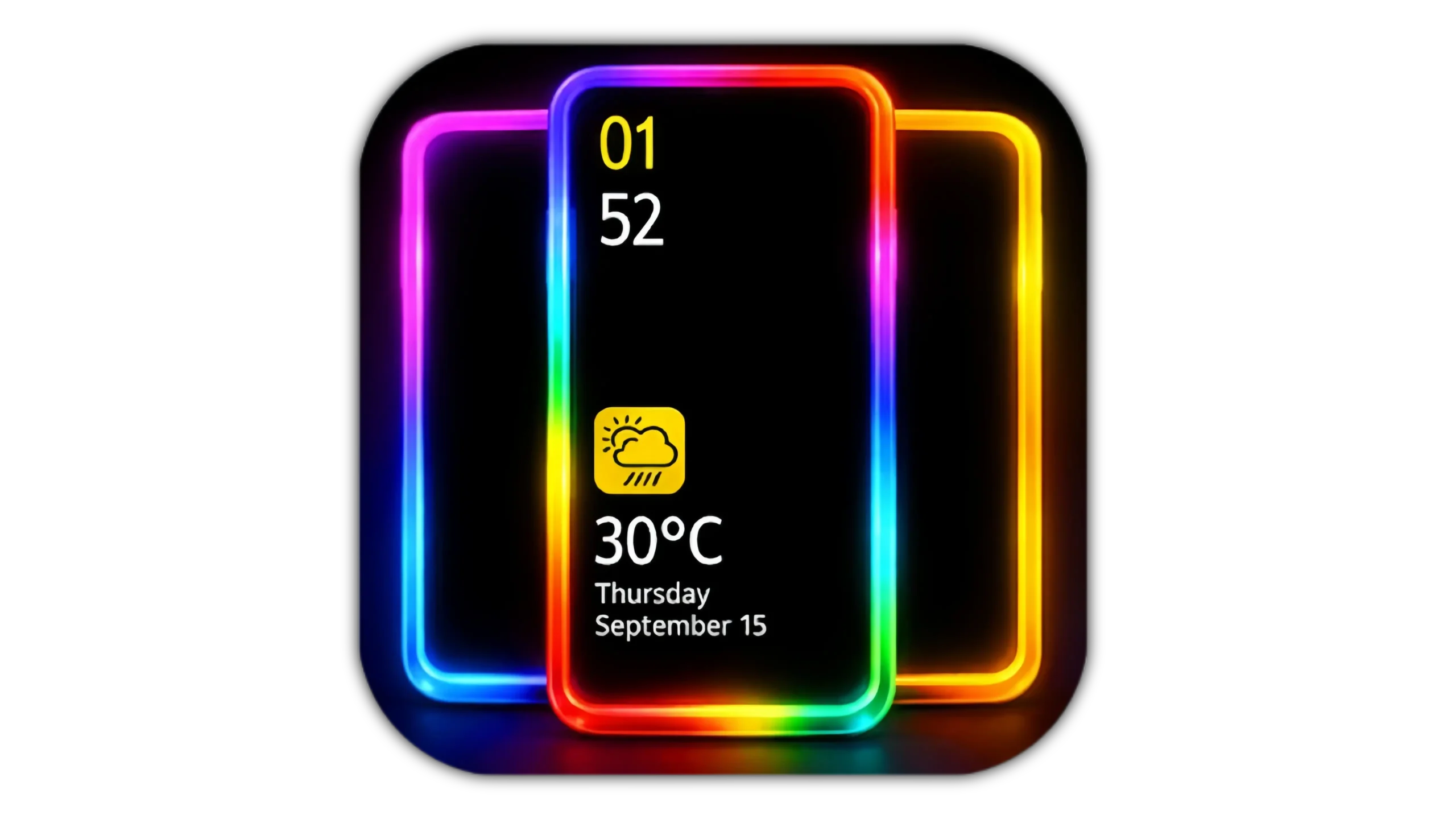
EDGE Lighting: Border Light APK
EDGE Lighting is one of the most visually striking Android customization apps available. It adds dynamic, colorful lighting effects along the edges and borders of your phone screen. Originally a feature exclusive to Samsung Galaxy Edge series phones, EDGE Lighting APK brings this effect to any Android device.
What Is EDGE Lighting Border Light APK?
EDGE Lighting is an Android application that displays animated light effects around the perimeter of your phone screen. When you receive a notification, incoming call, or music plays, colored light pulses, glows, or flows around your screen edges in customizable patterns and colors.
Samsung introduced edge lighting as a hardware-software feature on its curved-screen Galaxy S and Note series phones. Third-party EDGE Lighting APKs replicate this visual effect on any Android phone regardless of brand or screen shape.
Users download these apps for several reasons:
- Adding visual notification alerts without looking directly at the screen
- Customizing phone aesthetics beyond standard wallpapers and themes
- Getting Samsung-style edge effects on non-Samsung devices
- Creating visually distinct incoming call alerts
- Adding ambient music visualizer effects tied to audio playback
- Making phones visually stand out with dynamic border animations
How EDGE Lighting Works
The app runs as a persistent overlay service on your Android device. It uses Android’s overlay permission, which allows apps to draw visual elements on top of other apps and the home screen.
When a trigger event occurs, such as an incoming notification or call, the app activates its lighting overlay. The overlay draws animated colored borders along the screen edges in real time. The effect appears on top of your current screen content including your lock screen.
The app listens for notification events through Android’s Notification Listener permission. When a notification arrives from any app, the lighting effect triggers according to your configured settings for that specific app.
Key Features
1. Customizable Border Effects
The app offers a wide range of border lighting styles:
- Flowing light that travels around the screen perimeter
- Pulsing glow that breathes in and out along the edges
- Static border glow that illuminates all edges simultaneously
- Waterfall effect where light cascades down screen sides
- Neon outline creating a sharp colored border
- Rainbow gradient rotating through multiple colors continuously
- Spark effect with individual light particles traveling the border
Each style creates a distinctly different visual experience. You select the style that fits your preference and phone aesthetic.
2. Per-App Notification Colors
You assign specific colors to specific apps. WhatsApp notifications trigger green lighting. Instagram triggers a gradient matching Instagram’s brand colors. Missed calls trigger red. Messages trigger blue. Each app gets its own color signature so you identify the notification source from the lighting color alone without reading your screen.
3. Always-On Edge Display
Beyond notifications, the app offers an always-on edge lighting mode. Your screen edges glow continuously in a selected color or pattern while your phone is active. This creates a permanent ambient lighting effect around your display.
4. Music Visualizer Mode
The app synchronizes lighting effects with audio playback. As music plays, the border lighting pulses and moves in rhythm with the beat. Color intensity and animation speed respond to audio amplitude in real time. This turns your phone edges into a visual equalizer during music playback.
5. Charging Animation
When you plug in your charger, the app displays an animated charging indicator along your screen edges. A light travels around the border and fills progressively as your battery charges. The animation color changes when charging reaches 100 percent.
6. Incoming Call Effects
Incoming calls trigger a specific lighting pattern distinct from regular notification effects. You configure call lighting separately with its own color, animation style, and intensity. The effect activates on your lock screen so you see who is calling from the lighting pattern without unlocking.
7. Thickness and Intensity Control
You adjust the border lighting thickness from a thin 2-pixel line to a wide 30-pixel glow. Intensity adjusts from subtle ambient glow to bright vivid illumination. Combine thickness and intensity settings to match the lighting to your environment and preference.
8. Color Picker and Gradient Builder
Beyond preset colors, the app includes a full color picker for precise custom color selection. A gradient builder lets you create two-color or three-color gradients that flow along your screen border. You build custom color combinations matching your wallpaper, phone case, or personal aesthetic.
9. Schedule and Battery Saver
You schedule edge lighting to activate only during specific hours. During sleep hours or meetings, the lighting deactivates automatically. A battery saver mode reduces lighting brightness and animation complexity to minimize power consumption.
10. Lock Screen Support
The lighting effects work on your lock screen. Notifications trigger border lighting even when your screen is locked and dark. You see the notification alert from your phone’s edge lighting without unlocking or turning on the main display.
Top EDGE Lighting Apps for Android
1. EDGE Lighting Colors: Round Colors App
One of the most downloaded edge lighting apps on Google Play with over 10 million installs. It offers a broad range of border effects, per-app color customization, always-on display support, and a music visualizer. The interface is clean and the setup process takes under five minutes.
Key features:
- 20-plus border animation styles
- Per-app notification color assignment
- Music visualizer mode
- Charging animation
- Lock screen support
- Available on Google Play Store; free with optional premium upgrade
2. Border Light Live Wallpaper: Edge Lighting Effect
This app combines edge lighting with live wallpaper functionality. Your home screen wallpaper and border lighting work together as a unified visual theme. The app includes pre-built wallpaper and lighting combinations for coordinated aesthetics.
Key features:
- Combined live wallpaper and edge lighting
- Coordinated theme packages
- Always-on border glow
- Customizable animation speed and color
- Available on Google Play Store; free with premium themes
3. Edge Lighting and Notifications
A focused notification-centric edge lighting app. Its primary purpose is making notification alerts more visible through border lighting rather than aesthetic customization. It gives granular control over which apps trigger lighting and with what color and intensity.
Key features:
- Granular per-app notification control
- Priority notification lighting for specific contacts
- Do Not Disturb integration
- Minimal battery impact design
- Available on Google Play Store; free
4. AOD and Edge Lighting
This app combines Always-On Display functionality with edge lighting. Your screen displays a minimal clock and date in AOD mode while border lighting handles notification alerts. Both features work together without requiring full screen activation.
Key features:
- Always-On Display with edge lighting integration
- Clock, date, and battery display in AOD mode
- Notification lighting on AOD screen
- Multiple AOD clock styles
- Available on Google Play Store; free with paid pro features
5. Edge Screen S22 Lighting Effect
Specifically replicates the Samsung Galaxy S22 edge lighting implementation. If you want the closest possible match to Samsung’s official edge lighting behavior on a non-Samsung phone, this app targets that specific aesthetic.
Key features:
- Samsung S22-style edge lighting replication
- Samsung-style notification panel
- Edge panel shortcuts
- Curved screen effect overlay
- Available on Google Play Store; free with optional upgrade
How to Download and Install EDGE Lighting APK
From Google Play Store
- Open Google Play Store on your Android phone
- Search “EDGE Lighting Border Light” or “Edge Lighting Notifications”
- Review ratings, download count, and developer name
- Tap Install
- Open the app after installation completes
- Grant required permissions during setup
From Third-Party APK Sources
For versions with premium features unlocked:
- Go to Settings on your Android phone
- Tap Security or Privacy
- Enable “Install from Unknown Sources”
- Search for the app on a trusted APK site such as APKPure
- Check version number, upload date, and user reviews
- Download the APK file
- Scan with antivirus software before installing
- Open the file from your downloads folder
- Tap Install
How to Set Up EDGE Lighting
Step 1: Grant Required Permissions
EDGE Lighting apps require several permissions to function.
Open the app after installation. The setup wizard requests permissions one by one:
- Notification access: Required to detect incoming notifications and trigger lighting effects
- Display over other apps: Required to draw the border overlay on top of your screen content
- Accessibility service: Required by some versions to detect app activity
Grant all permissions the setup wizard requests. Without notification access and overlay permission, the core features do not work.
Step 2: Choose Your Default Effect
Select your default border lighting style from the effects library. Browse the preview animations for each effect. Tap any effect to see a live preview on your screen. Select the one you want as your default.
Step 3: Set Your Default Color
Choose your default notification color. This applies to all apps unless you set individual app colors later. Select a color that contrasts well with your typical wallpaper colors for maximum visibility.
Step 4: Configure Per-App Colors
Navigate to the app-specific settings section. Browse your installed apps list. Tap any app to assign it a specific lighting color and effect style. Start with your most important communication apps: WhatsApp, Phone, Messages, Email.
Step 5: Adjust Thickness and Intensity
Go to the appearance settings. Adjust border thickness to your preference. Set intensity level. Test the combination by triggering a notification or using the in-app preview button. Adjust until satisfied.
Step 6: Set Up Music Visualizer
If your app includes music visualizer mode, navigate to that section. Enable it. Select your preferred visualizer color or gradient. Play music on your phone and observe the border lighting response. Adjust sensitivity if the lighting responds too aggressively or too subtly to your music.
Step 7: Configure Charging Animation
Enable the charging animation in settings. Select the animation style and color. Plug your phone in to test the animation. The border lighting activates and shows your charging progress.
Step 8: Set a Schedule
Go to Schedule settings. Define hours when edge lighting should deactivate: overnight sleep hours, work meeting hours, or any period where visual notifications are unwanted. The app turns lighting off and on automatically at your defined times.
Step 9: Whitelist From Battery Optimization
Go to Settings on your phone. Tap Battery. Tap Battery Optimization. Find your EDGE Lighting app. Select “Don’t Optimize.” This prevents Android from killing the background service that monitors notifications and triggers lighting effects.
Conclusion
Download EDGE Lighting Colors from Google Play Store. Grant notification access and overlay permissions during setup. Select your default effect and color. Assign specific colors to your most important apps. Whitelist the app from battery optimization.
Your phone’s edges light up with every notification from that point forward. You know who is contacting you from the lighting color alone without unlocking your screen. The effect adds a layer of visual personality to any Android device regardless of brand or price range.